Schedule a Meeting in Outlook
Schedule a Microsoft Teams meeting directly from Outlook and invite participants inside
or outside the University. Meeting invitations include a Teams meeting link, and may
also include dial-in information if available for your account.
-
Open your Outlook Calendar.
-
Select the Teams Meeting button on the toolbar.
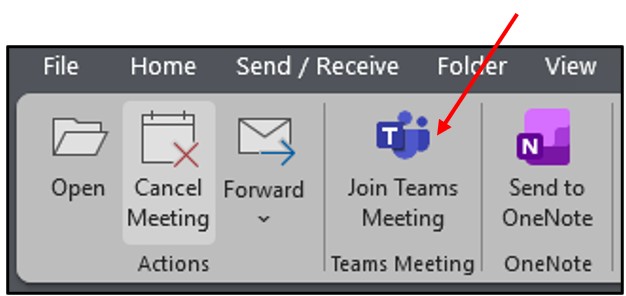
-
Add the meeting title, date, time, and attendees.
-
Enter any meeting details or agenda information.
-
Select Send.
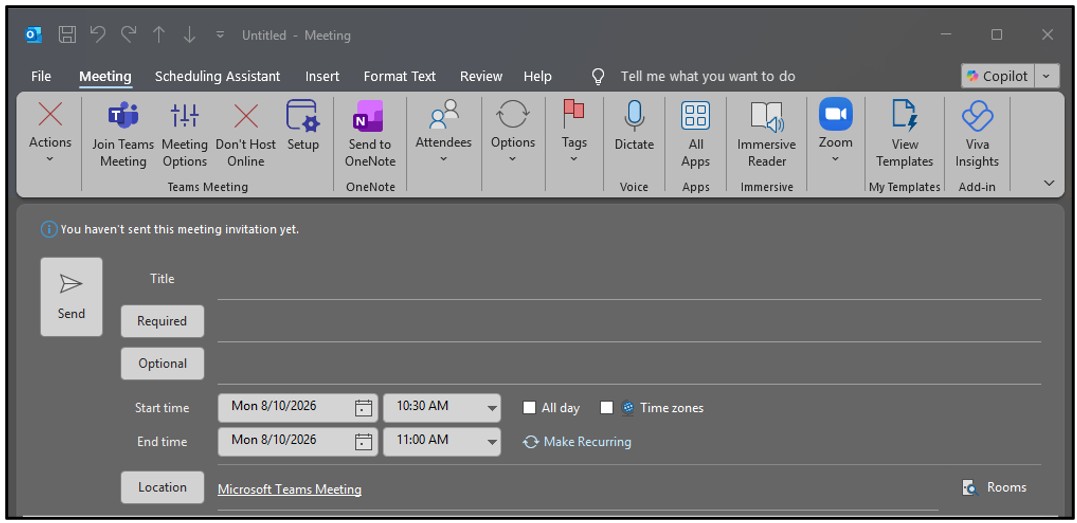
Meeting attendees will receive an invitation containing a link to join the Teams meeting. Depending on your organization's configuration, dial-in information may also be included in the meeting invitation.
- In Teams, open Calendar, select the meeting, and then select Meeting options.
- In the meeting invitation, select Meeting options.
- During a meeting, select More (three dots) in the meeting controls, and then select Meeting info.
For Microsoft Teams related questions or problems, send email to unifiedcommunications@uh.edu.