Microsoft Teams for Windows FAQs
What is Microsoft Teams?
Answer:
Microsoft Teams is a collaboration platform that brings chat, meetings, calls, files, and apps together in one place to help people communicate and work together.
Key features include:
- Chat – Send messages and collaborate with individuals or groups.
- Teams and Channels – Organize conversations, files, and projects in dedicated workspaces.
- Calendar – Schedule, join, and manage meetings that sync with Outlook.
- Apps – Access Microsoft and third-party apps directly within Teams.
I am transferring to a new department. What is the procedure for obtaining a new phone number?
Answer:
In most cases, you will keep your existing phone number when transferring to a new department. Department phone numbers remain with the department. If you are signed in to a shared phone, sign out before moving to your new department.
How do I add a participant to a call or meeting in Microsoft Teams?
Answer:
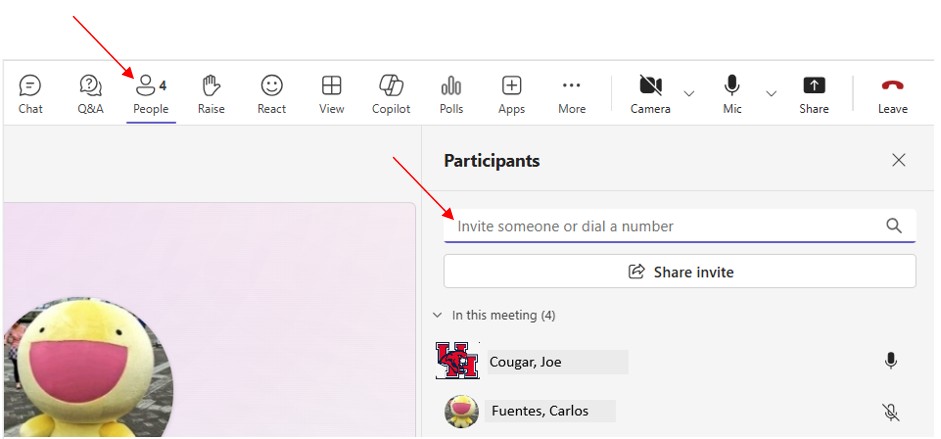
To add participants:
- Select People.
- In the Invite someone or dial a number field, enter the person's name or phone number.
- Select the person from the search results to add them to the call or meeting.
How do I transfer a call to voicemail?
Answer:
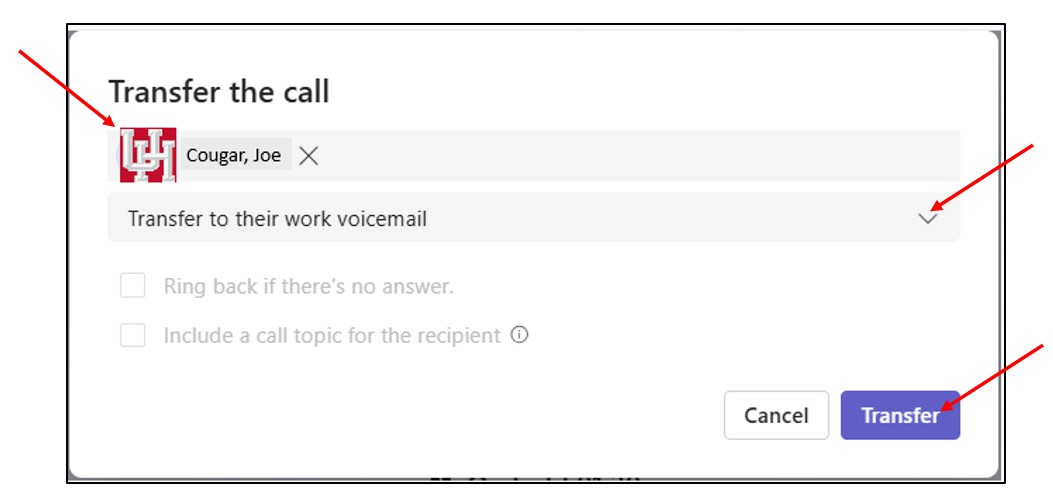
To transfer an active Teams call directly to another person's voicemail:
1. During an active call, select Transfer. 
2. Enter the name of the person to transfer the call to.
3. Choose Transfer to their work voicemail from the drop-down arrow.
4. Select Transfer.
How can a long-distance caller join my Microsoft Teams meeting?
Answer:
If a long-distance caller needs to join an active Teams meeting, provide the meeting dial-in number and conference ID or forward the meeting invitation. The caller can join by dialing in to the meeting.
How is Microsoft Teams different from my existing phone service?
Answer:
Microsoft Teams is a unified communications platform that integrates calling, chat, meetings, voicemail, and collaboration features into a single application. Traditional phone systems primarily provide voice calling, while Teams enables communication and collaboration across multiple devices and locations.
How can I learn more about Microsoft Teams?
Answer:
Visit our training page to access Microsoft Teams guides and video tutorials.
How can I block unwanted calls in Microsoft Teams?
Answer:
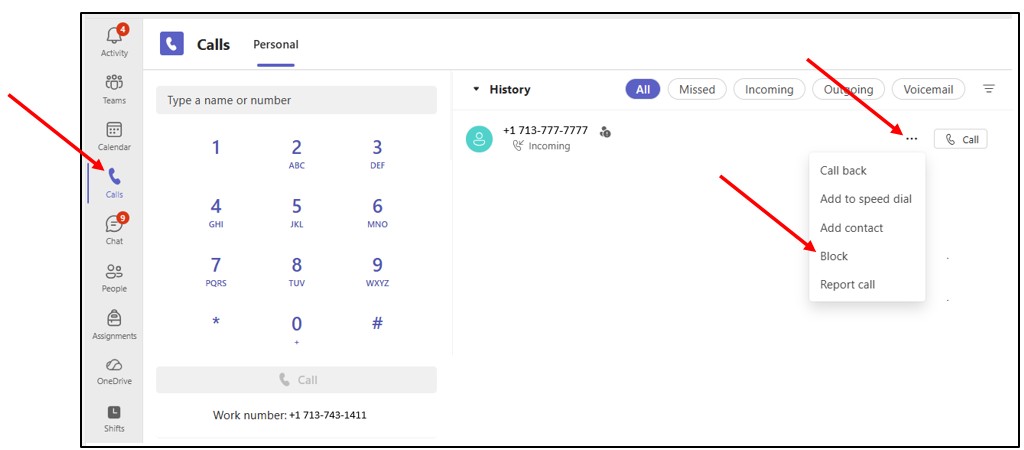
Note: You can only block a phone number and not a Teams contact.
1. Open Calls.
2. In History, locate the call from the phone number you want to block.
3. Select More options (...) next to the call entry.
4. Select Block.
How can I unblock calls on Microsoft Teams?
Answer:
1. In History, locate the call from the phone number you want to unblock.
2. Select More options (...) next to the call entry.
3. Select Unblock.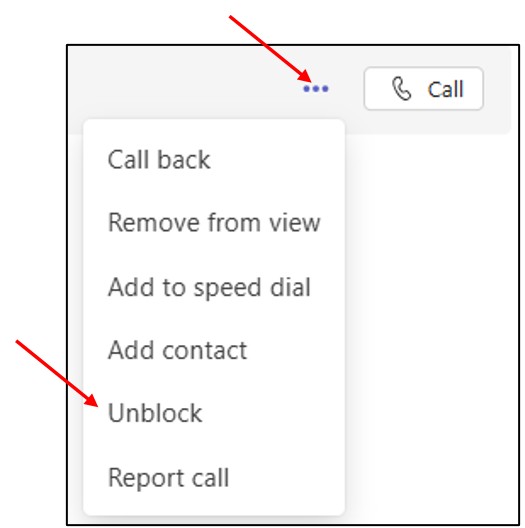
For Microsoft Teams related questions or problems, send email to unifiedcommunications@uh.edu.