Sign in to Genesys
Select a version of Genesys:
Sign in to Genesys (Web Version)
Sign in Credentials
Use your Microsoft 365 email address (for example: CougarNetID@cougarnet.uh.edu) and CougarNet password to sign in to Genesys.
You can sign in to Genesys using Chrome, Firefox, Safari, or Microsoft Edge.
Note: When prompted for an organization name, enter uohsystems.
1. Go to Genesys Cloud: https://login.usw2.pure.cloud/#/authenticate-adv/org/uohsystems.
2. Select Microsoft.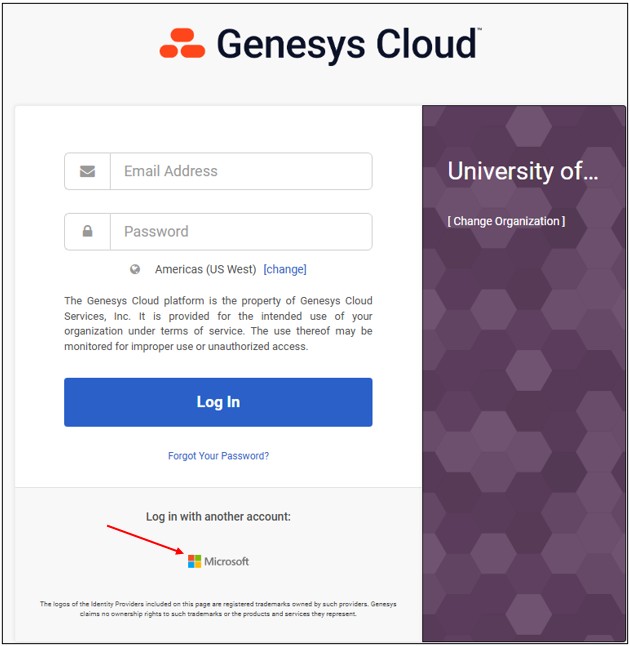
3. Enter your Microsoft 365 email address.
4. Select Next. 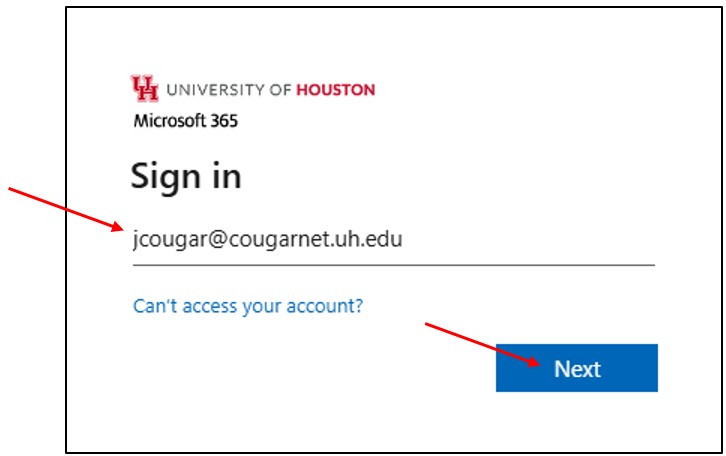
5. Enter your CougarNet password.
6. Select Sign in.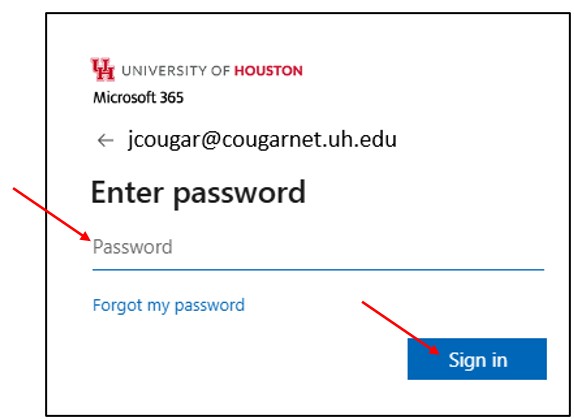
7. In the Microsoft Authenticator app, enter the number displayed on the screen.
8. Tap Done on the Microsoft Authenticator app.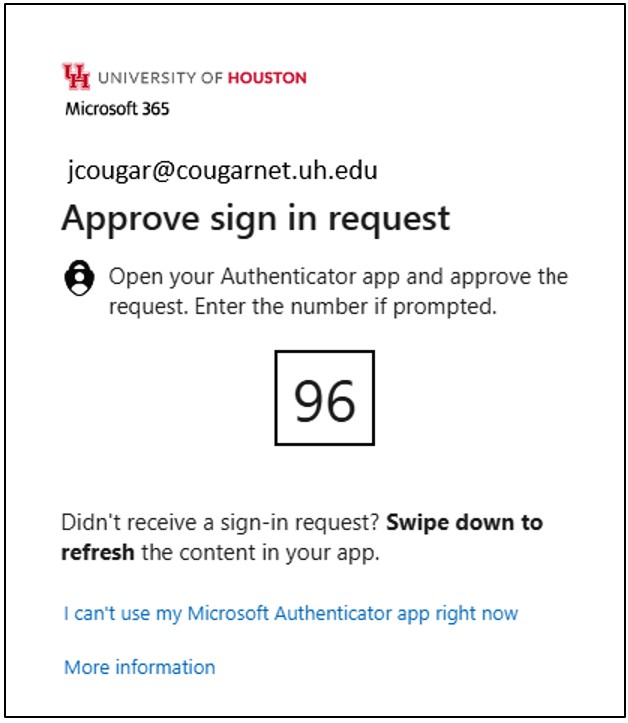
9. Select Yes. 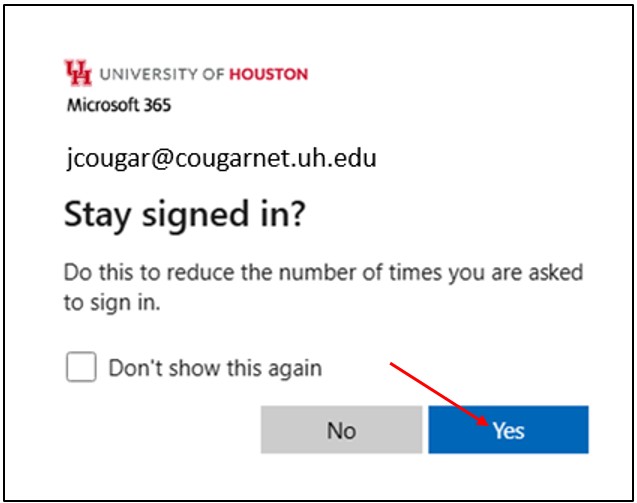
10. Select Collaborate/Communicate.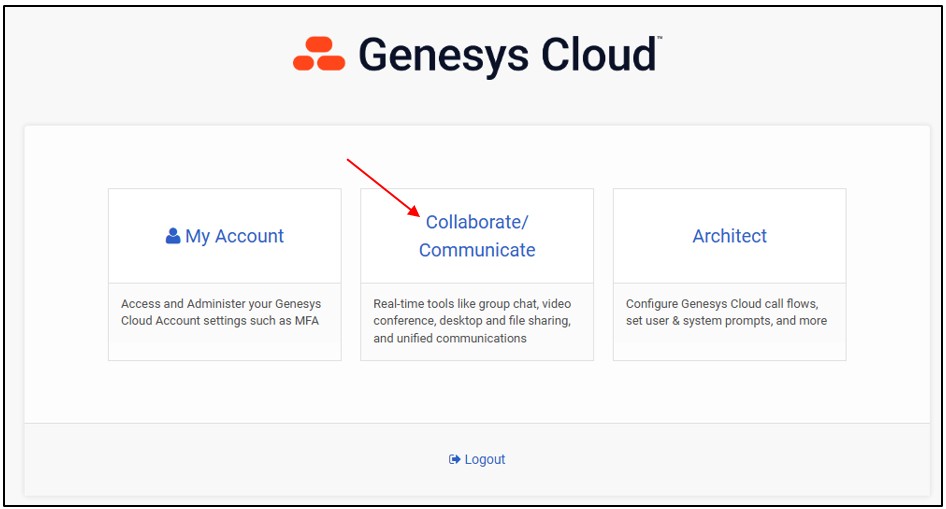
11. Select the device.
12. Select Allow while visiting the site. 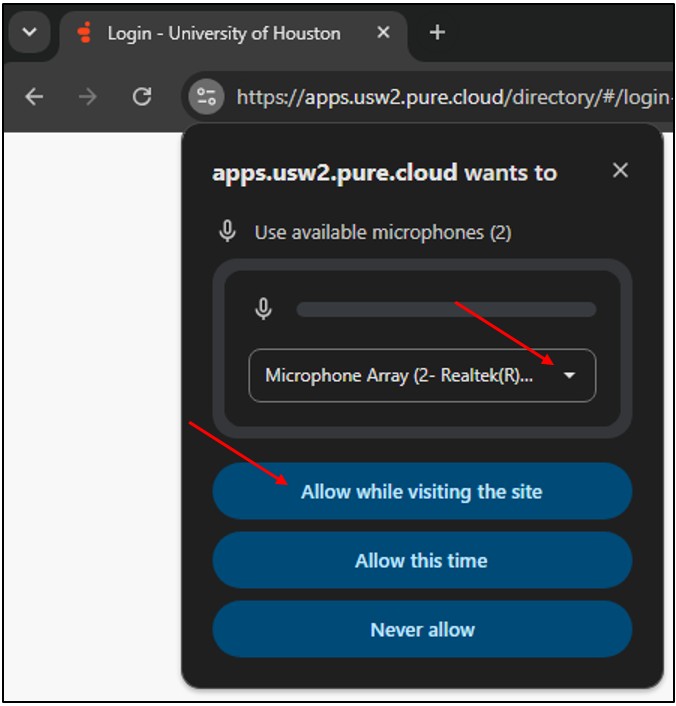
13 Select Allow.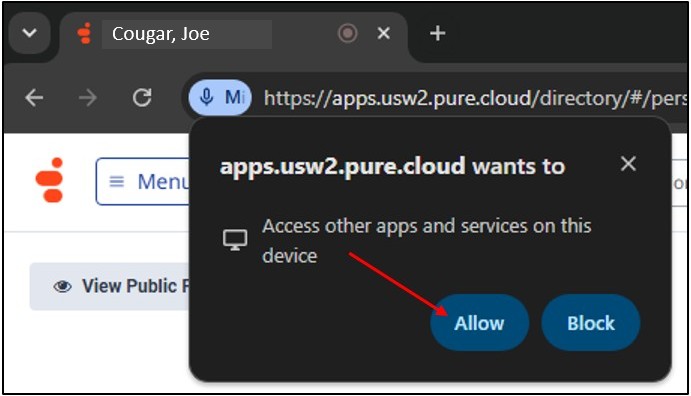
Sign in to Genesys (Desktop Version)
Note: When prompted for an organization name, enter uohsystems.
1. Open the Windows Start menu.
2. Search for Genesys Cloud Desktop.
3. Select the Genesys Cloud Desktop application.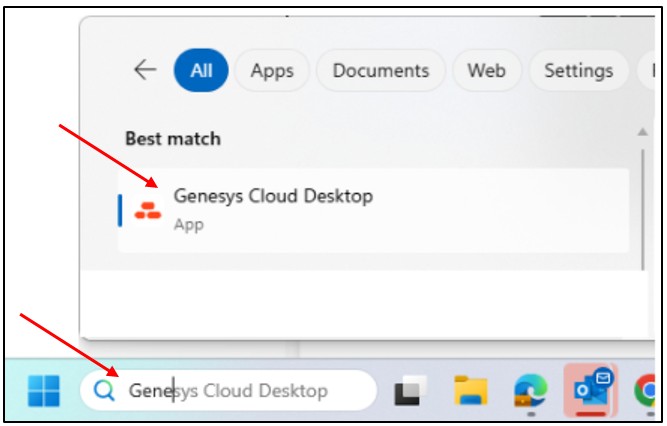
4. Select Microsoft.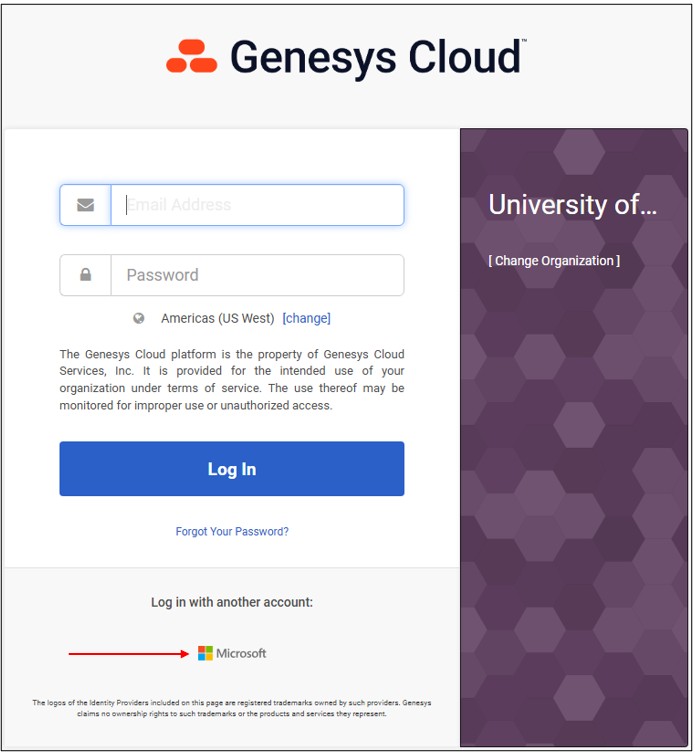
5. Enter your Microsoft 365 email address.
6. Click Next.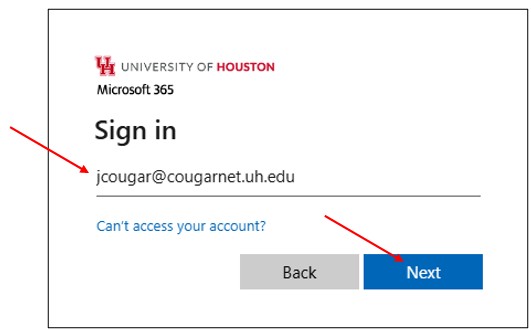
7. Enter the CougarNet password.
8. Select Sign in. 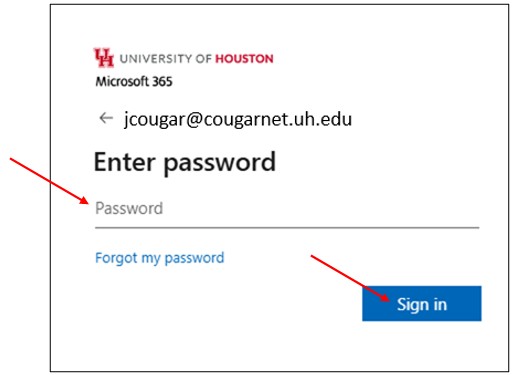
9. In the Microsoft Authenticator app, enter the number displayed on the screen.
10. Tap Done on the Microsoft Authenticator app.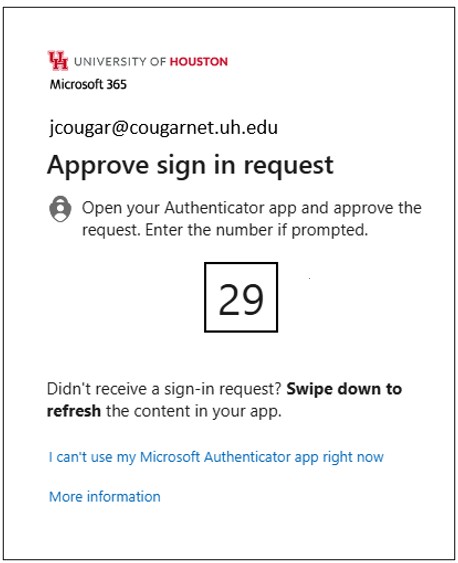
For Microsoft Teams related questions or problems, send email to unifiedcommunications@uh.edu.